

Create Org API Tokens
Create an Organization API Token in the Mist Portal
- From the left menu of the Juniper Mist portal, navigate to Organization > Settings.
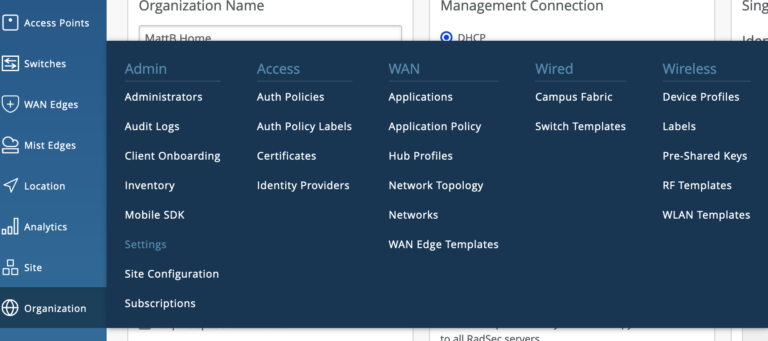
- Scroll down to the API Token section and click Create Token.
- Define the permissions for the token.
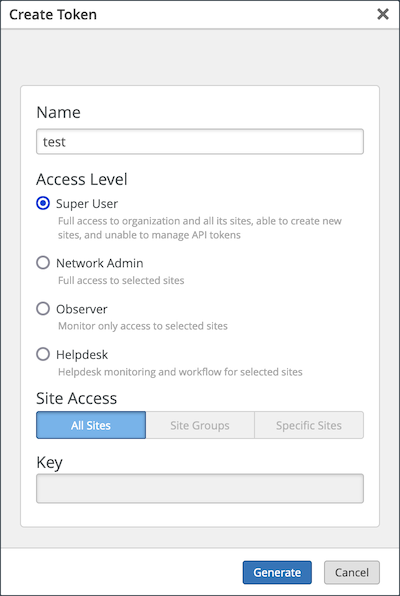
- Click Generate.
- After you click Generate, you will see a message at the top of the window letting you know that you need to save your key.
- Copy the key by clicking the copy button next to the Key field and store it somewhere for safe keeping.
NOTE: The only time you will see the entire, untruncated key is upon creation. You will not be able to see the full key ever again. If you misplace the key, you will have to create a new key.
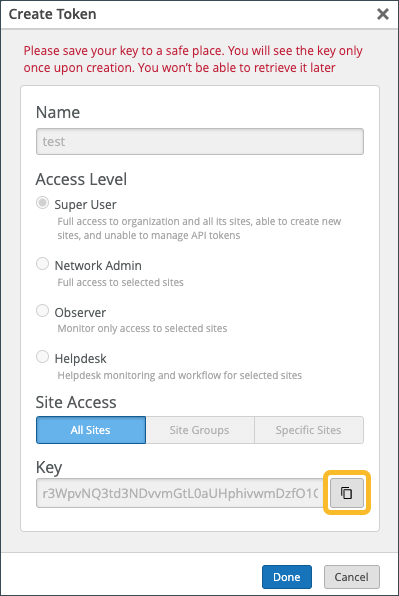
- Click Done at the bottom of the window.
- Click Save near the top-right corner of the page.
Create an Org API Token using the REST API Explorer
It is also possible to create an Org API Token by using the REST API Explorer UI. To do so:
- Log in to the Juniper Mist portal (you must be logged into the Mist Portal prior to using the REST API Explorer).
- Open a new browser window and paste in your URL to the REST API Explorer: {api_endpoint}/api/v1/orgs{org_id}/apitokens.
NOTE: In place of {api_endpoint}, you need to use the API endpoint for your global region. See API Endpoints and Global Regions. In place of {org_id}, you need to use the ID of your Mist Organization. This information can be retrieved on the Mist UI > Organization > Settings under the Organization ID field
The REST API Explorer is the API page for token control. Here you can create, read, update, and delete tokens and token information. This page initially displays the tokens that you have already created.
This page also enables you and other users to make an API call directly from the browser. With Media type: applications/json already selected as the default, a GET request will be performed to show you a list of your tokens. A truncated key will display for any previously created tokens.
- In the Content field at the bottom of the page, define your API Token parameters. You must at least define the API Token privileges (see Create Org API Token for more information). For example, if you want to create a *
read-onlyAPI Token with an access across the whole organization:
{
  "name": "My Org APITOKEN",
  "privileges": [
      {
          "scope": "org",
          "role": "read"
      }
  ]
}- Create a token by clicking the POST button.
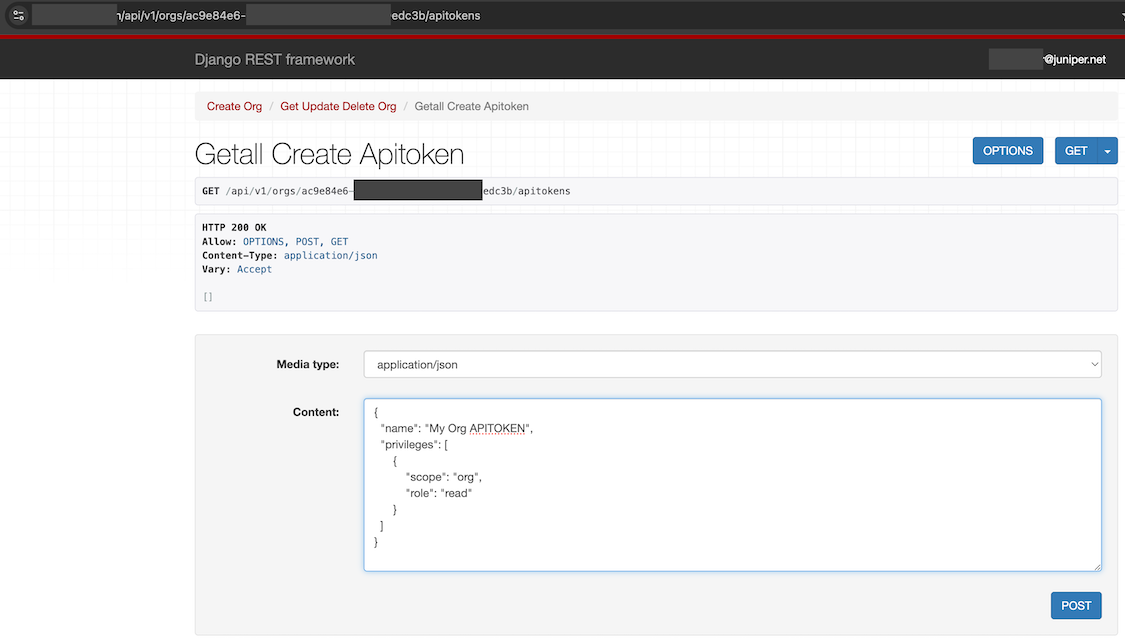
NOTE: The Juniper Mist API will never again display the actual token (key) in full, anywhere, after creating the key. After you navigate away from this page and come back, the key will appear but in a truncated version. You should treat this key as a password and store it in a safe place. If you lose this key, you will need to create a new one.
The response received should look like this example:
{
  "name": "My Org APITOKEN",
  "id": "6731aba9-eca2-45ab-8bd0-e0353006fca9",
  "last_used": null,
  "key": "L0kN12lkn4lkn***nklnqlkewnrsFTJ",
  "created_time": 1733425014,
  "org_id": "ac9e84e6-f3bd-4000-968a-e5d02c9edc3b"
}
Create an Org API Token using API
To finish, you can also create and manage the org API Token with the Org API Token API calls:
- List Org API Tokens
- Create Org API Token
- Get Org API Token
- Update Org API Token
- Delete Org API Token
NOTE: The Juniper Mist API will never again display the actual token (key) in full, anywhere, after creating the key. After you navigate away from this page and come back, the key will appear but in a truncated version. You should treat this key as a password and store it in a safe place. If you lose this key, you will need to create a new one.